Welcome to the User Manual
ADAPT - Documentation
This Chatbot Manager User Manual explains how to use the ADAPT customizable chatbot platform. This user manual provides step-by-step guidance on how to use the ADAPT customizable chatbot platform. Each section explains the purpose of the feature, how to navigate it, and basic troubleshooting tips for common issues.
A. Account Access and Management
This section covers the essential processes for securely accessing and managing your ADAPT account.
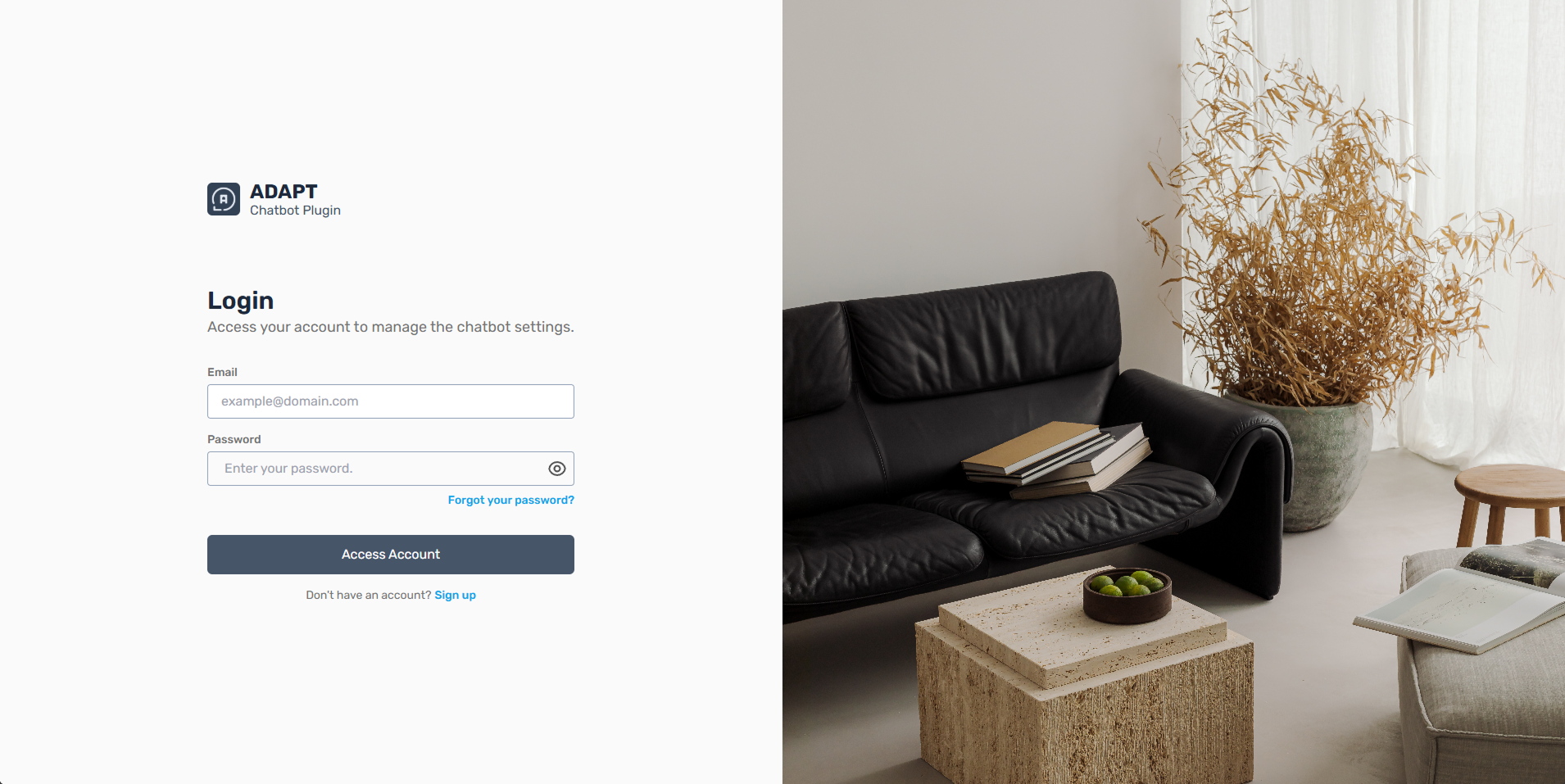
A.1. Login
Purpose
To securely access your ADAPT account
and manage your chatbot settings.
Instructions
- 1. Open the ADAPT website.
- 2. Navigate to the Login page.
- 3. Enter your registered email address and password.
- 4. Click Login to proceed.
- 5. You will be directed to the Dashboard after successful authentication.
Troubleshooting
- - Ensure your internet connection is stable.
- - Double-check email and password for typos.
- - Use Forgot Password if needed.
- - Refresh or try a different browser if the page fails to load.
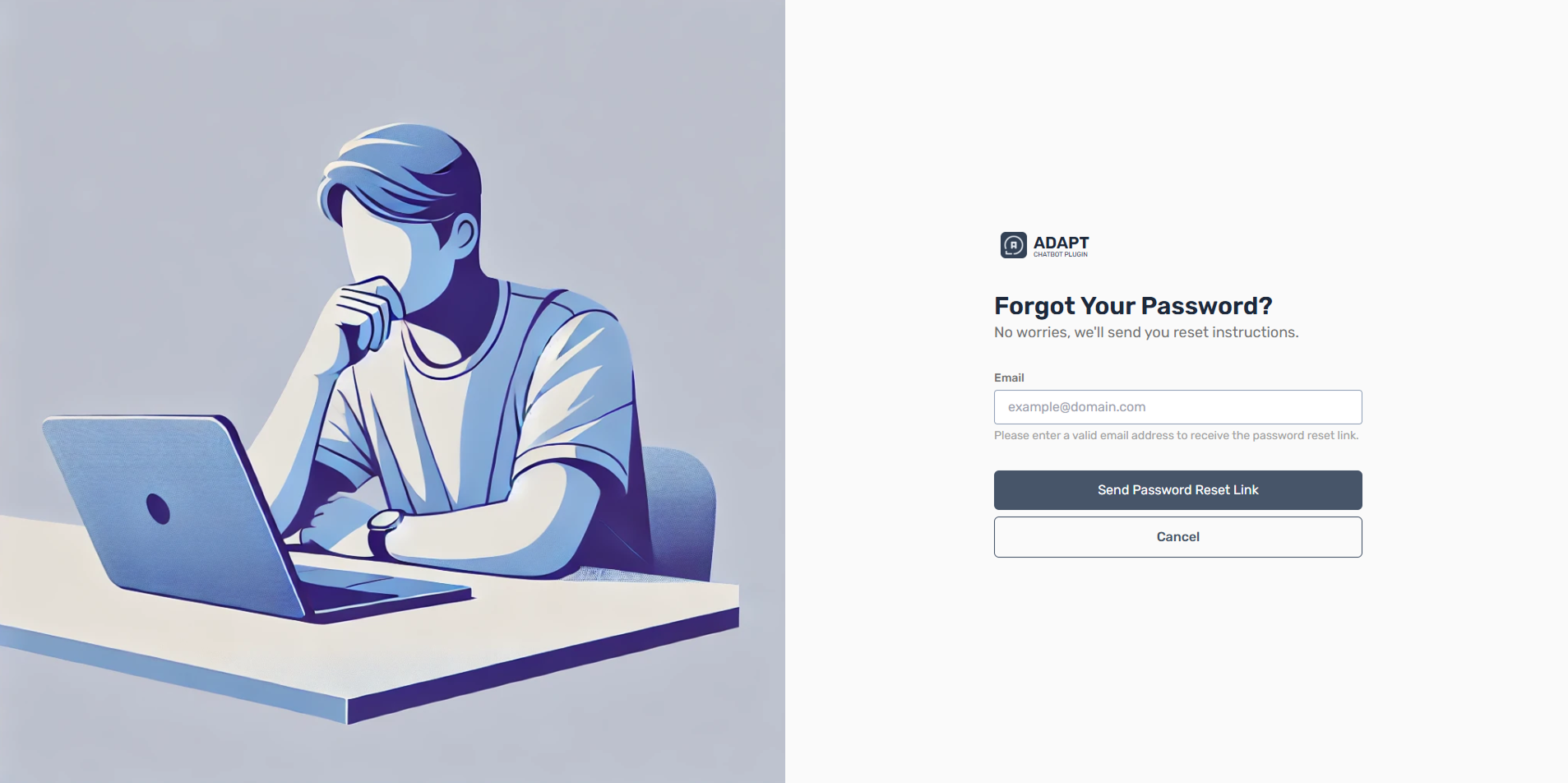
A.2. Forgot Password
Purpose
To regain access if you can't remember
your password.
Instructions
- 1. From the Login page, click Forgot Password.
- 2. Enter your registered email address.
- 3. Check your inbox for a password reset link.
- 4. Open the link and create a new password.
- 5. Return to Login and sign in with the new credentials.
Troubleshooting
- - Check Spam/Junk if you don’t receive the email.
- - Confirm you used the correct email.
- - Request a new reset link if the previous one expired.
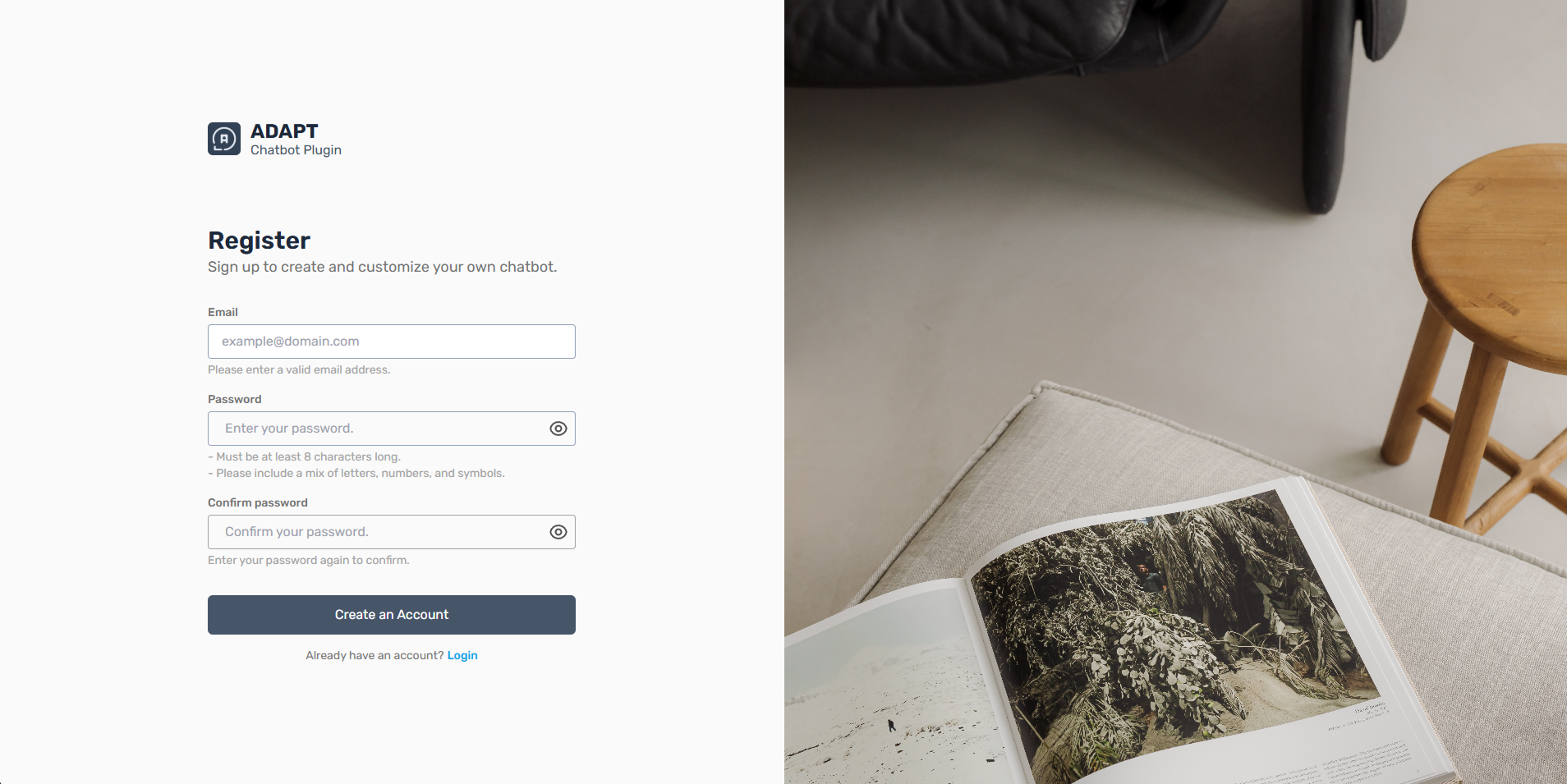
A.3. Sign Up
Purpose
To create a new ADAPT account and
access chatbot configuration tools.
Instructions
- 1. On the Login page, click Sign Up.
- 2. Enter your email address and create a secure password.
- 3. Confirm the password and click Create Account.
- 4. Check your inbox for a verification email and click the Verify Email link.
- 5. After verification, return to Login and sign in.
Troubleshooting
- - Use a valid email to receive verification.
- - Ensure passwords meet strength requirements.
- - Clear browser cache if signup fails.
B. Dashboard and Core Modules Overview
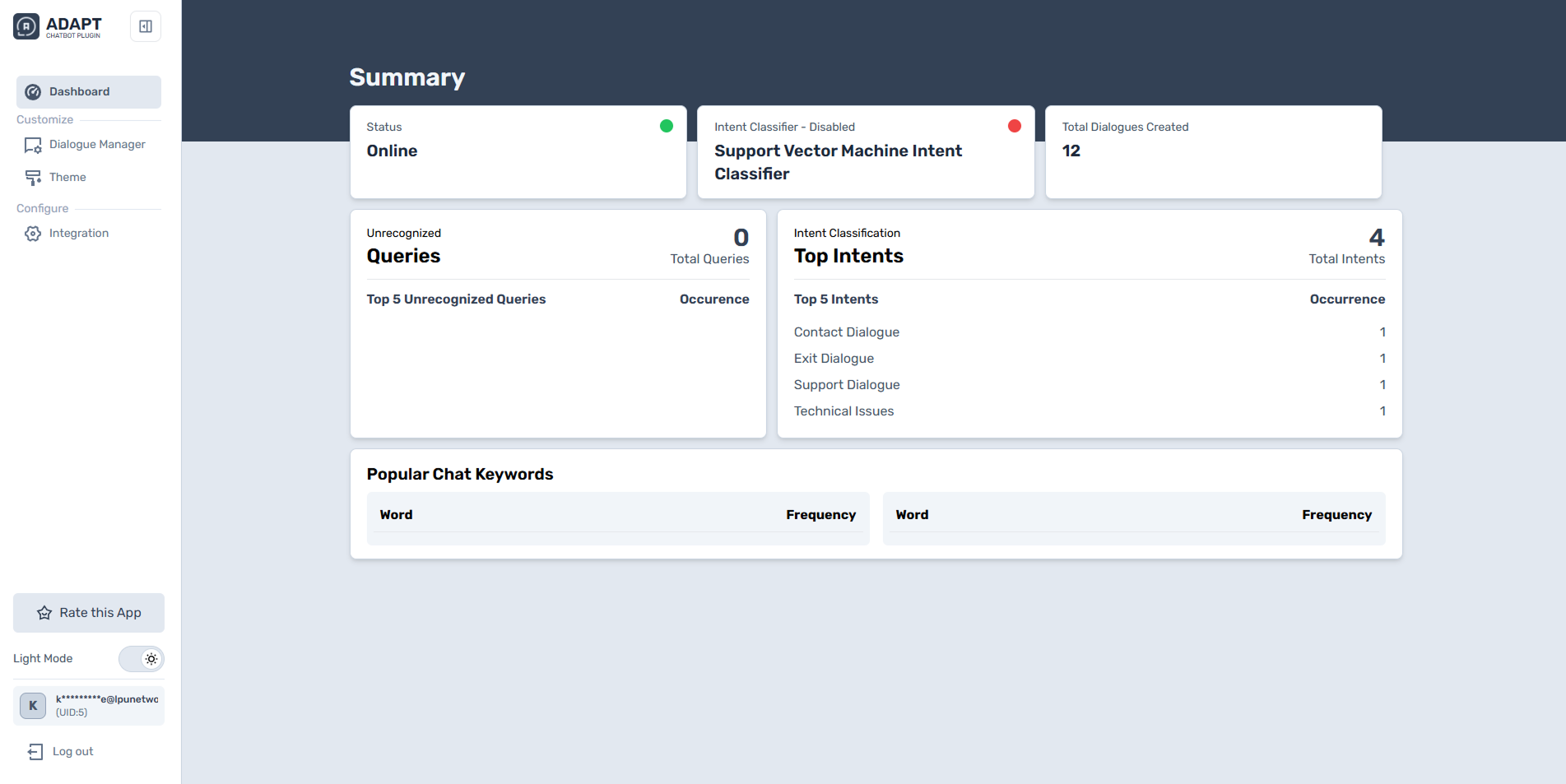
Purpose
The Dashboard is the home screen after
logging in and provides access to all tools and features.
Description & Key Features
- Dialogue Manager – Modify chatbot responses and flows.
- Theme Customization – Adjust appearance settings and preview changes.
- Integration Settings – Generate client keys and script snippets for installation.
- Account Options – Edit personal account information and security.
Troubleshooting
- - Refresh the page if modules don't load.
- - Clear cache if elements appear misaligned.
- - Confirm account permissions for access to features.
C. Chatbot Configuration
C.1. Dialogue Manager
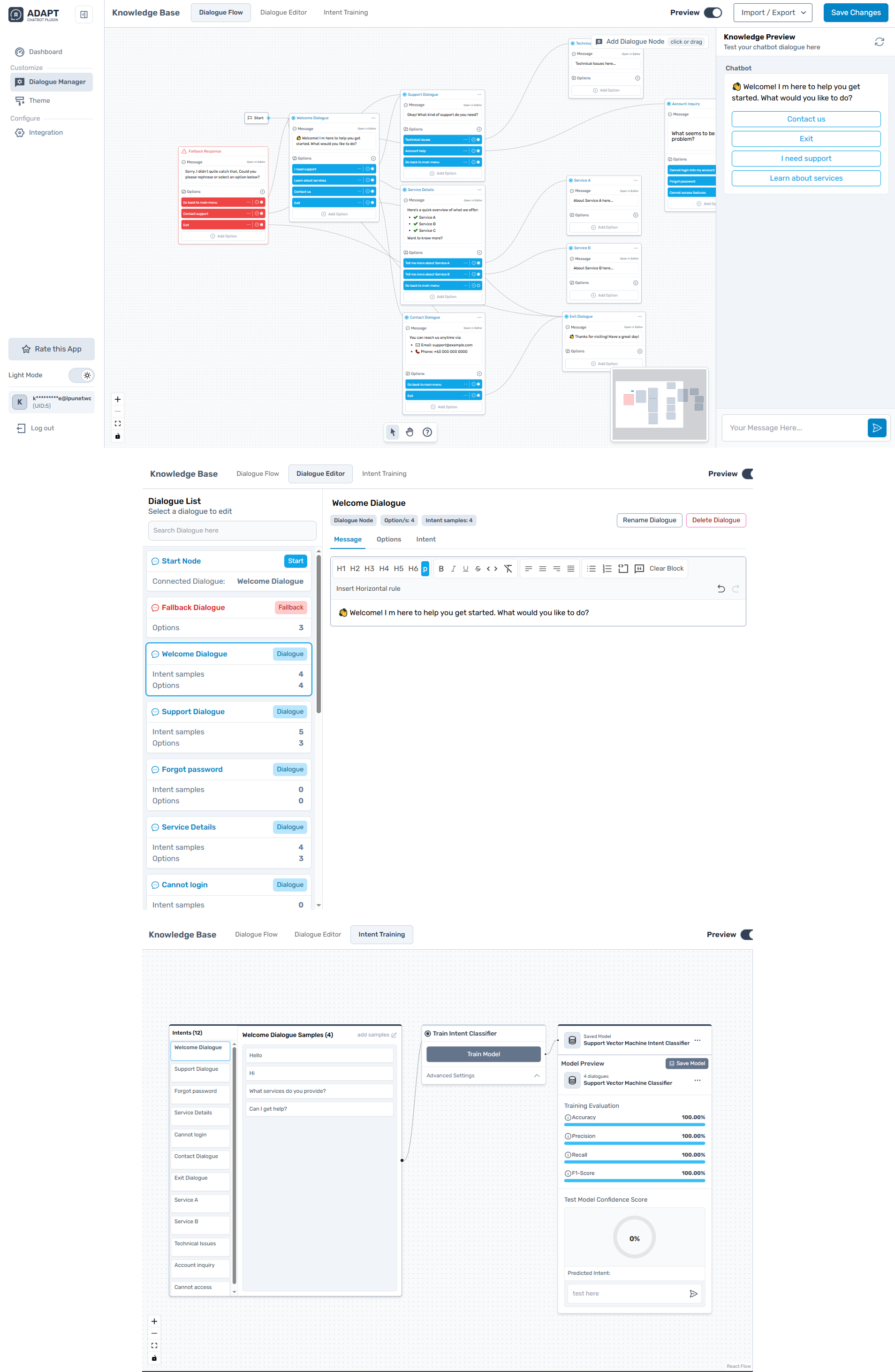
Purpose
Create, edit, and organize chatbot
conversations and intents.
Instructions
- 1. From the Dashboard, select Dialogue Manager.
- 2. Choose a dialogue category (e.g., Welcome Dialogue, Support Dialogue).
- 3. Click Add Samples to enter new responses or training examples.
- 4. Edit or delete existing samples as needed.
- 5. Click Save to apply changes.
Tips & Troubleshooting
- - Use simple, natural language in responses.
- - Group related intents for clearer organization.
- - If samples don't save, ensure required fields are filled.
- - Retrain with more sample variations if responses are incorrect.
C.2. Theme Customization
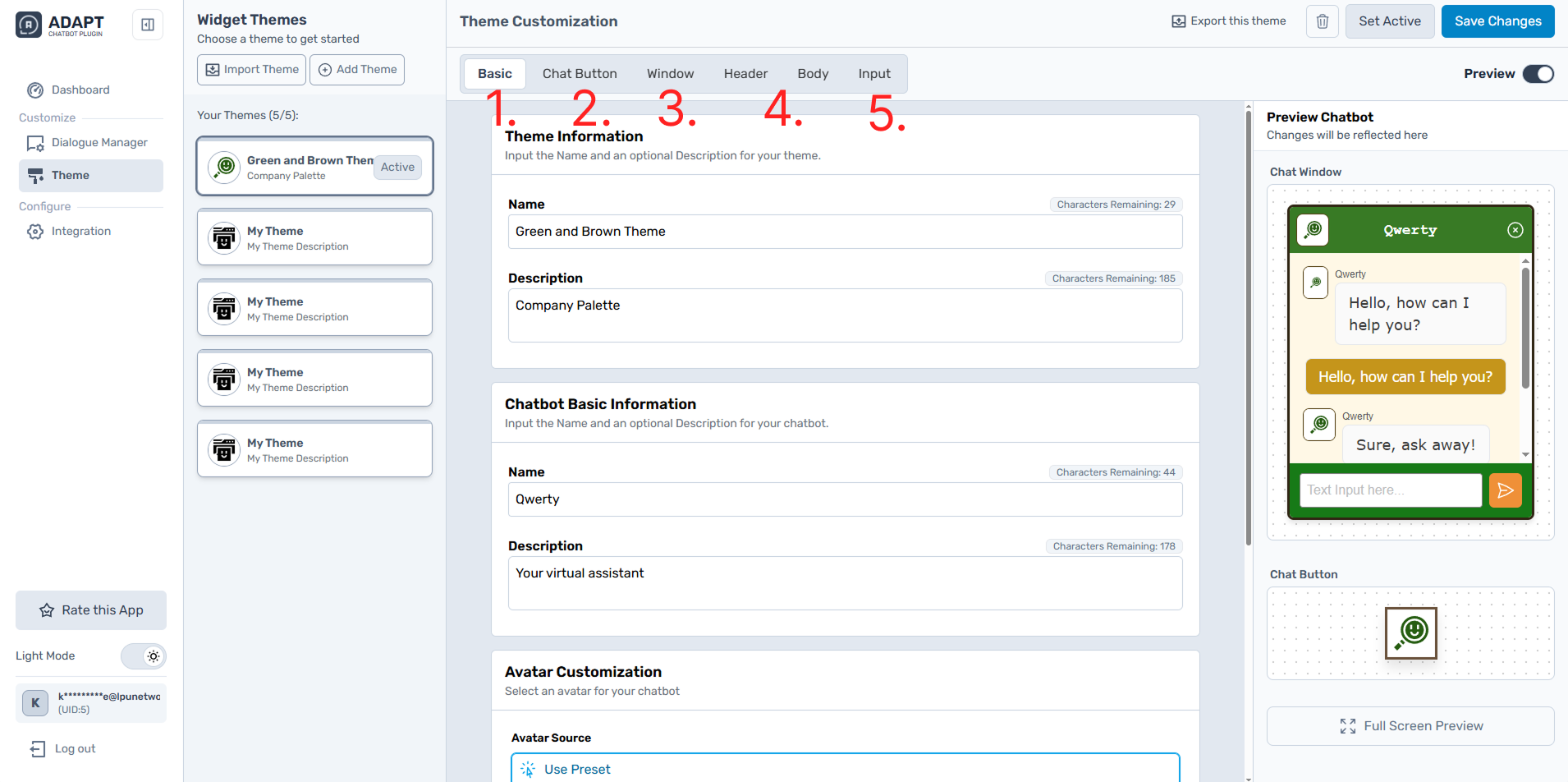
Purpose
Personalize the chatbot's appearance
to match your branding and design preferences.
Overview & Adjustable Settings
- 1. Chatbot Information — name, description, avatar.
- 2. Chat Button — icon, shape, size, style, position.
- 3. Chat Window — size, shape, border, shadow, position.
- 4. Chat Header & Body — color, fonts, bubble styles, spacing.
- 5. Input Field — padding, placeholder text, send button style.
Troubleshooting
- If previews don't update,
refresh or check browser compatibility.
D. Installation and Integration
D.1. Integration Settings
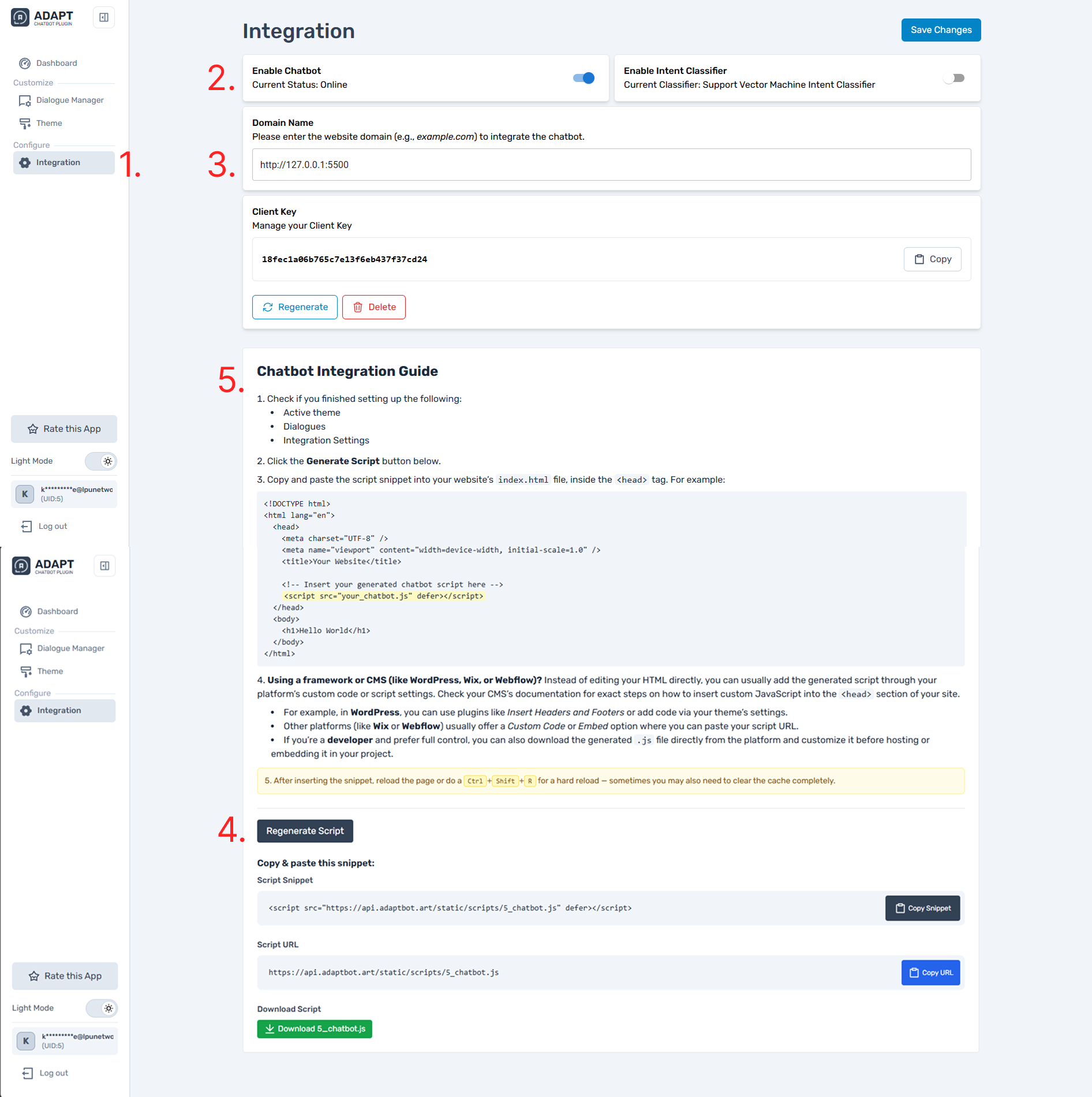
Purpose
Install your chatbot on any HTML-based
website by generating keys and script snippets.
Instructions
- 1. Open Integration Settings from the Dashboard.
- 2 Toggle Enable Chatbot to ON.
- 3. Enter your website domain and click Generate Client Key.
- 4. Copy the client key and click Generate Script.
-
5. Paste the script snippet into the
<head>of your website's HTML. - 6. Save and reload your site; verify the chatbot loads correctly.
Troubleshooting
- - Ensure the domain matches the one entered in the system.
- - Verify the script is placed correctly in the <head> section.
- - Remove duplicate scripts if the chatbot fails to appear.
E. Advanced Account Options and Appearance
E.1. Account Modification
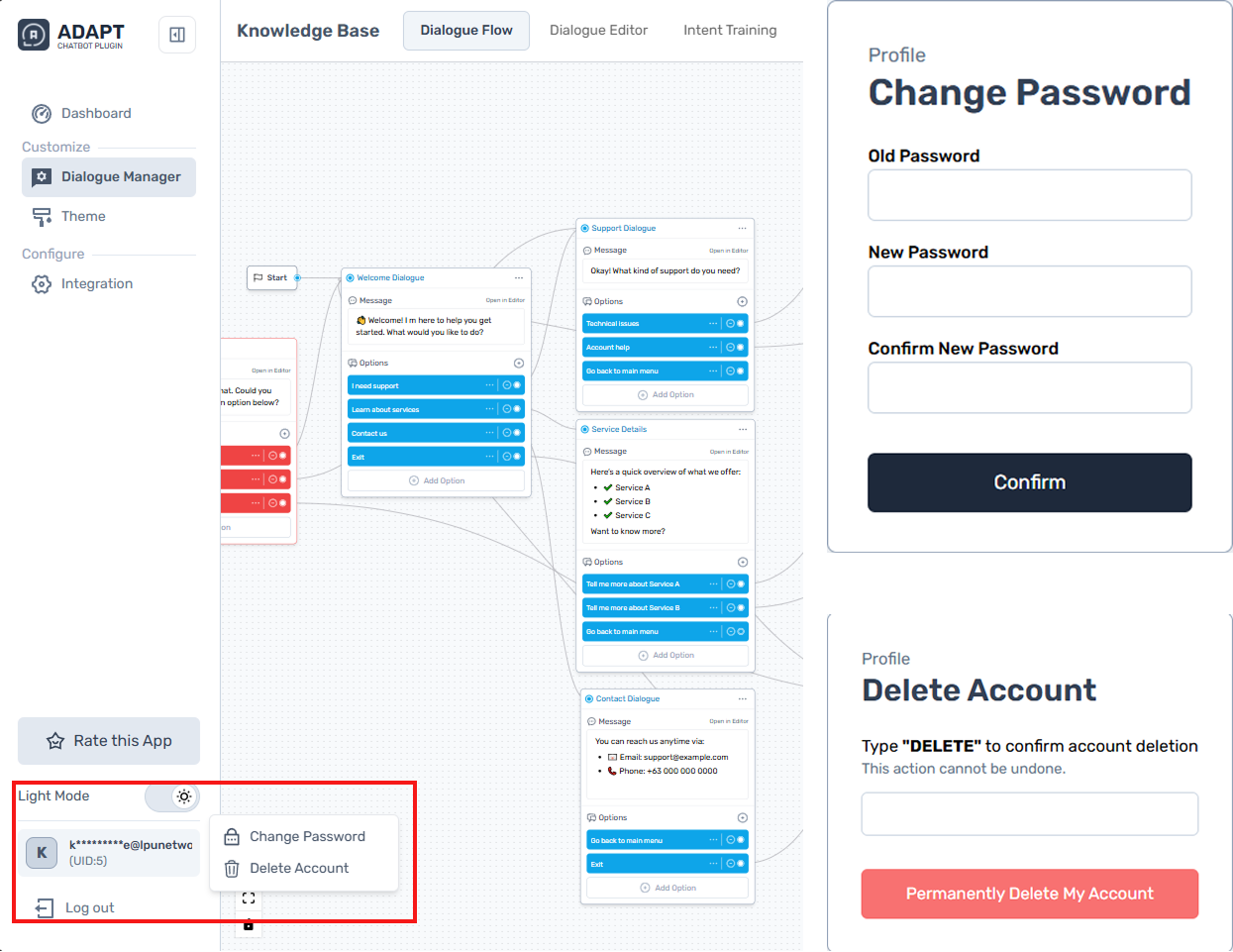
E.1.1 Change Password
- 1. Go to Account Settings.
- 2. Select Change Password.
- 3. Enter current password, then enter and confirm a new password.
- 4. Click Save Changes.
Troubleshooting
- New passwords must meet
minimum strength requirements.
E.1.2 Delete Account
- 1. Open Account Settings.
- 2. Click Delete Account.
- 3. Type DELETE to confirm.
- 4. Click Permanently Delete My Account (this action cannot be undone).
Troubleshooting
- Export any data you need
before deletion; the action is permanent.
E.2. Light Mode and Dark Mode

Purpose
Choose the interface appearance that
best fits your preference or environment.
Instructions
- 1. Open the sidebar menu.
- 2. Locate the Dark Mode toggle.
- 3. Switch ON to activate Dark Mode; OFF for Light Mode.
Troubleshooting
- If the mode doesn't switch,
refresh the page. Older browsers may not fully support theme
transitions.